Wirecast – Unable to start, find the Quicktime plug-in solution

If installing Wirecast (a great live streaming application by Telestream) and you run across this little error upon starting up for the first time:


Wirecast was unable to start
Unable to find the QuickTime plug-in. Please reinstall Wirecast.

wcast1

I would not recommend reinstalling Wirecast but simply downloading and installing QuickTime:

  1. Visit www.apple.com/quicktime/download/ and download
  2. Run Setup
  3. I would uncheck the boxes on this dialog:
    wcast2
  4. And at the end of the install I would also click “No Thanks”:
    wcast3


You should now be able to run Wirecast without the QuickTime error. This applied to Wirecast 5 (5.0.3) and Windows 7 x64.

As a side note, I’ve been experimenting with DaCast streaming provider, so far seems to work well.

Wirecast – Unable to start, find the Quicktime plug-in solution

New App Version IOS / iTunes Connect CFBundleVersion Error

App_Store_Logo

When adding a new version of your app to iTunes Connect, you may run across the below error:

ERROR ITMS-9000: “This bundle is invalid. The value for key CFBundleVersion [1.0] in the Info.plist file must contain a higher version than that of the previously uploaded version [1.0].” at SoftwareAssets/SoftwareAsset (MZItmspSoftwareAssetPackage)

This version (CFBundleVersion) is the build version of your bundle and can be different (more frequent) than your release version number (aka CFBundleShortVersionString).

You can edit this version in the info.plist file

bundleversion

From Apple:

The build version number should be a string comprised of three non-negative, period-separated integers with the first integer being greater than zero. The string should only contain numeric (0-9) and period (.) characters. Leading zeros are truncated from each integer and will be ignored (that is, 1.02.3 is equivalent to 1.2.3).

After updating your info.plist you should be able to rebuild and upload your new / updated version without issue. -Now you just need to wait for Apple to approve…

New App Version IOS / iTunes Connect CFBundleVersion Error

Changing RavenDB’s Port From 8080 – Windows Service

A few folks have asked how to change the port of which RavenDB is listening (defaults to 8080). It’s easily changed by editing a config file. Below are the steps if you’re running Raven as a Windows service.

  1. Launch Services and stop the RavenDB service. ravenservice
  2. Locate the “Raven.Server.exe.config” file from your install directory of RavenDB. (mine was in f:\ravendb\)
  3. Open this config file and change this line: <add key=”Raven/Port” value=”8080″/> to whatever available port you’d like (I did 8082)
  4. Save the config file.
  5. Start the service back up.

RavenDB should now be listening on your new port. You can test by going to http://localhost:8082  (or whatever hostname you’re using).

Changing RavenDB’s Port From 8080 – Windows Service

Fixing / Removing Invalid Characters from a File Path / Name – c#

Below is a simple method for fixing bad filenames and paths. This uses the character lists from Path.GetInvalidPathChars and Path.GetInvalidFileNameChars (part of System.IO).

You should be able to pass a filename, directory or path. Example, calling these three lines would yield the below:

cleanPath(@"c:\tem|<p\fi<>le.txt")
cleanPath(@"c:\tem|<p\")
cleanPath(@"fi<le.txt")

Returns:

c:\tem-p\fi-le.txt
c:\tem-p\
fi-le.txt

You can also pass a string that’s used to replace the bad characters.

cleanPath(@"c:\tem|<p\fi<>le.txt", string.Empty)

Returns:

c:\temp\file.txt
 private string cleanPath(string toCleanPath, string replaceWith = "-")  
      {  
           //get just the filename - can't use Path.GetFileName since the path might be bad!  
           string[] pathParts = toCleanPath.Split(new char[] { '\\' });  
           string newFileName = pathParts[pathParts.Length - 1];  
           //get just the path  
           string newPath = toCleanPath.Substring(0, toCleanPath.Length - newFileName.Length);   
           //clean bad path chars  
           foreach (char badChar in Path.GetInvalidPathChars())  
           {  
                newPath = newPath.Replace(badChar.ToString(), replaceWith);  
           }  
           //clean bad filename chars  
           foreach (char badChar in Path.GetInvalidFileNameChars())  
           {  
                newFileName = newFileName.Replace(badChar.ToString(), replaceWith);  
           }  
           //remove duplicate "replaceWith" characters. ie: change "test-----file.txt" to "test-file.txt"  
           if (string.IsNullOrWhiteSpace(replaceWith) == false)  
           {  
                newPath = newPath.Replace(replaceWith.ToString() + replaceWith.ToString(), replaceWith.ToString());  
                newFileName = newFileName.Replace(replaceWith.ToString() + replaceWith.ToString(), replaceWith.ToString());  
           }  
           //return new, clean path:  
           return newPath + newFileName;  
      }  

Hope it helps!

Fixing / Removing Invalid Characters from a File Path / Name – c#

How To Install Redis on Windows and Get Started With C#

Dictionary_IconRedis is a key-value store that is fast, sits in memory and runs on many different platforms. Installing on Windows isn’t straightforward from the Redis site, so below are the steps I use to get going.

1. Download the latest .zip from: https://github.com/mythz/redis-windows/tree/master/downloads

2. Extract these files to a folder (I did f:\redis)

3. In a command prompt, run

redis-server.exe redis.windows.conf

(from your directory above).

Redis should now be running on port 6379. You can change this in redis.windows.conf  if you’d like.

4. Start a new Visual Studio Project (I’m using c# / .net 4.5).

5. In Package Manager Console (NuGet) let’s install the client, run:

Install-Package StackExchange.Redis

6. Include using StackExchange.Redis;

7. Now you can use the below to save and get values:

  //setup your connection
  ConnectionMultiplexer redisConn = ConnectionMultiplexer.Connect("localhost");

 //get your db
 IDatabase redDb = redisConn.GetDatabase();

 //save a key & val
 redDb.StringSet("testKey", "test val");

 //get a key & val
 Console.WriteLine(redDb.StringGet("testKey"));

This is just start of what Redis can do, find more at the official Redis site.

How To Install Redis on Windows and Get Started With C#

Simple Single Page / Single User Forms Authentication without DB – C#

simple-loginOn smaller projects, maybe for internal usage, you want to protect a page with a username and password. Below is an easy way you can protect a page (or pages / folders) using a user and pass (kept in the web.config for easy access). This method uses forms authentication but doesn’t require a database or other source for user details since a single user is just stored in the web.config.

You’ll basically need to.

  1. Create a login page (simple .aspx page)
  2. Modify your web.config


Let’s start with your web.config. Below are the areas you’ll want to add: Continue reading “Simple Single Page / Single User Forms Authentication without DB – C#”

Simple Single Page / Single User Forms Authentication without DB – C#

Watching & Printing New Files in a Directory – vb & c#

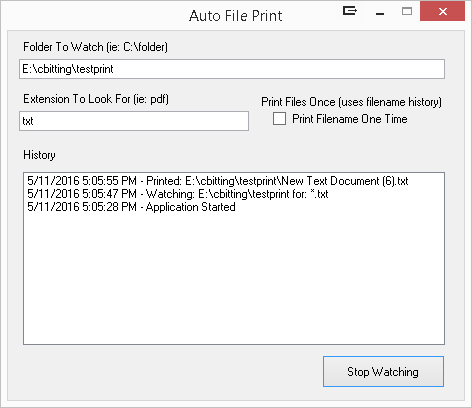
FileWatcherPrinterMonitoring a folder for new files in .net can easily be watched using the FileSystemWatcher in System.IO. You give it a path (ie: C:\toprint) and it will raise an event when a file is created (you can also watch for deleted, renamed and updated files).

Edit: I have new / full code here on GitHub.

I’ve had the need on several occasions to print new files as they are created, so the combination of the FileSystemWatcher and using a process to call the file and print work well together. Below the code to print to the default printer (works great for .pdf files):

c#:

 Process PrintProcess = new Process();
 PrintProcess.StartInfo.CreateNoWindow = false;
 PrintProcess.StartInfo.Verb = "print";
 PrintProcess.StartInfo.FileName = e.FullPath;
 PrintProcess.Start();

vb:

 Dim PrintProcess As New Process
 PrintProcess.StartInfo.CreateNoWindow = False
 PrintProcess.StartInfo.Verb = "print"
 PrintProcess.StartInfo.FileName = e.FullPath
 PrintProcess.Start()

The file watcher uses this syntax:

c#:

FileSystemWatcher fsWatcher = new FileSystemWatcher(txtDirToWatch.Text);
fsWatcher.Created += OnChanged;
 var withFSW = fsWatcher;
 withFSW.EnableRaisingEvents = true;
 withFSW.IncludeSubdirectories = false;
 withFSW.WaitForChanged(WatcherChangeTypes.Created);
 withFSW.Filter = "*.pdf";

vb:

Dim fsWatcher As New FileSystemWatcher(txtDirToWatch.Text)
 
AddHandler fsWatcher.Created, AddressOf OnChanged
With fsWatcher
 .EnableRaisingEvents = True
 .IncludeSubdirectories = False
 .WaitForChanged(WatcherChangeTypes.Created)
 .Filter = "*.pdf"
End With

And the OnChanged Event: c#:

 public void OnChanged(object source, FileSystemEventArgs e)
 {
   //Do something with e.FullPath, etc.
 }


vb:

 Public Sub OnChanged(ByVal source As Object, ByVal e As FileSystemEventArgs)
  'Do something with e.FullPath, etc.
 End Sub


*I haven’t used this method to print many different formats or tons of files at once, but give it a try!

If you’d like a fully working solution (vb or c#) drop me a line at chris.bitting(at)gmail(dot)com and I’d be glad to send my project and code.

Watching & Printing New Files in a Directory – vb & c#

Remove or Hide PowerPoint Controls on All Slides

ppt3If you customize PowerPoint with controls (button, text boxes, labels, etc.) you may want to delete or hide these to create a clean version of your presentation. Below is a script you can use hide all of the controls (or you can filter). My example uses PowerPoint 2010 but should apply to most recent versions:


1. Create a new module: ppt1

2. Paste the below text:

Public Sub HideControls()

'keep a count of how many items hidden - just fyi
Dim cntrlCount As Integer
    'loop through slides
    For Each sld In ActivePresentation.Slides
        'loop through slide shapes - includes button, text boxes, ole controls, etc
        For Each shp In sld.Shapes
        
        ''Filter here if you want - by name or type
        ' If InStr(shp.Name, "command") >= 1 Then
        ' If shp.Type = 3 Then
        
        'set hidden
        shp.Visible = False
        
        'if you wanted to delete*: shp.Delete
        
        cntrlCount = cntrlCount + 1
        
        Next
    
    Next

MsgBox cntrlCount & " items affected."

End Sub

3. Click Run (green play button) to run this code and hide your controls. ppt2


If you want to show or unhide your controls, change shp.Visible = False to shp.Visible = True


*Note: if you use shp.Delete, you won’t be able to recover your items.

Remove or Hide PowerPoint Controls on All Slides

Renaming a local file in Cordova / PhoneGap

A few folks have asked “how do I simply rename a local file in Cordova?” Well, to start, you’ll need the file plugin from Apache Cordova. If you don’t already have this, run the below to add the file plugin.

cordova plugin add org.apache.cordova.core.file

Then, you can use the “moveTo” function to rename the file. Below is a reusable function I utilize to pass the current file name, directory, the new file name and a function that happens when the rename is successful.

You can utilize the below function like:

//to call the function. 'renameSuccess' is an function that is used as the success event if the rename is okay
renameFile('somefile.xml','myapp/xml/','new.xml', renameSuccess);

//the function
function renameFile(currentName, currentDir, newName, successFunction) {

    window.requestFileSystem(LocalFileSystem.PERSISTENT, 0, function (fileSystem) {

        fileSystem.root.getFile(currentDir + currentName, null, function (fileEntry) {
            fileSystem.root.getDirectory(currentDir, {create: true}, function (dirEntry) {
                parentEntry = new DirectoryEntry(currentName, currentDir + currentName);

                fileEntry.moveTo(dirEntry, newName, function () {

                    successFunction();

                }, renameFail);
            }, renameFail);
        }, renameFail);

    }, renameFail);
}

//and the sample success function
function renameSuccess() {
    alert('renamed!');
}

//and the sample fail function
function renameFail() {
    alert('failed');
}

I’m not saying this is the ‘best’ way to do this, so feel free to comment on improvements!

Renaming a local file in Cordova / PhoneGap

Allow Local File Access in Chrome (Windows)

chrome-128Sometimes it’s cool to debug and test javascript applications in Chrome but you want to read / write to local files. Example: you’re looking to use ajax and do a $.getJSON(‘json/somefile.json’). Chrome by default won’t allow this and will throw an error similar to:

Failed to load resource: No 'Access-Control-Allow-Origin' 
header is present on the requested resource. 
Origin 'null' is therefore not allowed access.

Or
XMLHttpRequest cannot load. No 'Access-Control-Allow-Origin' 
header is present on the requested resource. 
Origin 'null' is therefore not allowed access.

Chrome does have a switch to enable this, it’s quite easy to turn on. You’ll need to make sure Chrome is closed completely, and run chrome with the ‘–allow-file-access-from-files’ flag. Ie:

C:\Users\<user>\AppData\Local\Google\Chrome\Application>
chrome --allow-file-access-from-files

Or you should be able to run:

%localappdata%\google\chrome\application\chrome --allow-file-access-from-files

I’ve made the below into a .bat file I use, if you find it helps.

start "chrome" %localappdata%\google\chrome\application\chrome --allow-file-access-from-files
exit

To see if the flag is set, you can visit:  chrome://version/ and look at the Command Line section and you should see –allow-file-access-from-files

You’ll most likely need to run this with at least admin access, and I would caution visiting unknown sites with this setting on, as they could capitalize on your setting and potentially read local files.

Update, see my newer post on using node and http-server to create a local web server to get around these issues:
Local web server for testing / development using Node.js and http-server

Allow Local File Access in Chrome (Windows)